Happ is a modern, user-friendly VPN client for iOS, Android, Windows, macOS, Android TV and Apple TV. It supports VLESS, VMess, Trojan, Shadowsocks, Hysteria 2 and Socks5 protocols, making it a universal solution for bypassing any censorship.
Download the App
Find Happ in the AppStore or Google Play. Desktop versions for Windows and macOS are available at happ.su.
Get a Key or Subscription
Below are working VLESS keys. Click "Copy" on any of them, or use our Telegram Bot to get a personal subscription with auto-updating servers.
Import the Config
Open Happ, tap "+" at the top right corner of the home screen. Three import methods are available:
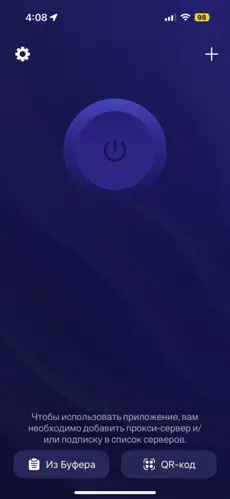
- Clipboard — copy a key (vless://, vmess://, ss://, hy2://) from our site and tap "Import from Clipboard". The server will instantly appear.
- QR Code — if you are browsing on a desktop, simply scan the QR code using the app's built-in scanner.
- Subscription URL — this is the most reliable method. Paste your unique subscription link here to load all servers automatically and keep them updated in the background.
Connect!
Select a server from the list and tap the large button in the center. Allow VPN configuration if prompted. Done!
FAQ
Why is Happ VPN not connecting?
If Happ shows "Time out" or keeps trying to connect, the server IP has been blocked by your ISP. Try copying a different key from the list above — VLESS with XTLS-Reality keys are the most resistant to blocking. Also make sure you have the latest version of Happ installed.
Which protocols does Happ support?
Happ supports VLESS (including XTLS-Reality, XHTTP), VMess, Trojan, Shadowsocks, Hysteria 2, and Socks5. For bypassing censorship we recommend VLESS with XTLS-Reality.
Can I use Happ on a Smart TV?
Yes! Happ is available for Android TV (via Google Play) and Apple TV (via AppStore). The easiest way to add a key to your TV is by scanning a QR code with the built-in scanner.
 افتح في Happ
  افتح في Hiddify
  افتح في V2rayNG
  افتح في V2rayTUN